How to Get Your Auto Repair Shop on Google Maps (and Take Bookings From It)
Quick answer
Create a Google Business Profile, verify it, fill it out so Google trusts it enough to show you, then add your booking link so customers can book straight from your profile. You only do the setup once.
When a car starts making trouble — grinding brakes, a check-engine light, a leak on the driveway — nobody opens a phone book. They search "auto repair near me" and tap one of the shops on the map. If your shop isn't there, you're invisible at the exact moment a customer is looking for you.
Why your shop needs to be on Google Maps
When someone searches "mechanic near me" or "brake repair [your town]," Google shows a map with three shops at the top of the page — above every website. That block is what most people tap. If you're not in it, the shops that are get the call.
- It's where the intent is. Nobody searches "auto repair near me" to browse. They have a car that needs fixing today.
- It costs nothing. A Google Business Profile is free to create and manage — easily the highest-return hour of marketing your shop will do.
- It's how customers judge you. Reviews, photos, hours, and whether you reply to reviews all show right there — before anyone visits your website.
- It's where they can book. Your profile powers the Call, Directions, and booking buttons customers tap on their phone.
- Your competitors are already there. Every month you're not listed is bookings going to whoever is.
💡 Already have a verified profile? Jump to Part 4: Add your booking link.
Part 1 — Create your Google Business Profile
- Go to business.google.com/add and sign in. Use a Google account that belongs to the shop — not a technician's personal Gmail — so you never lose access when someone leaves.
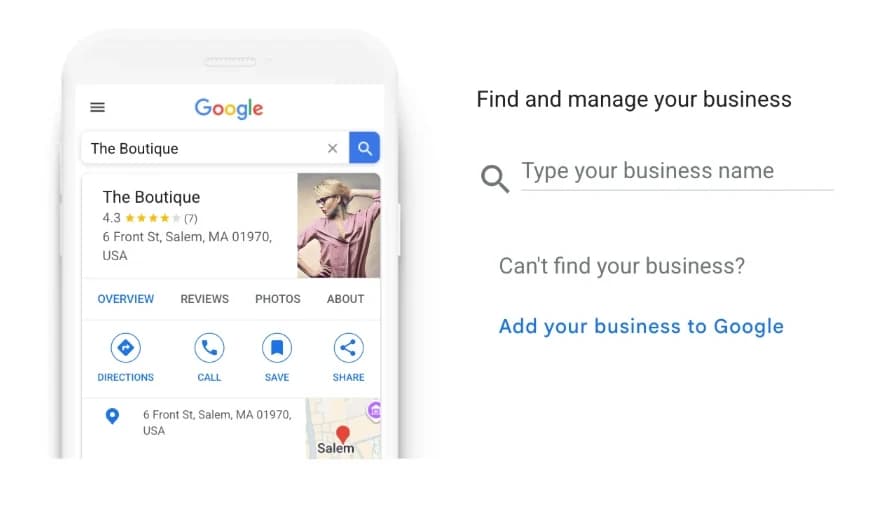
- Type your shop name. If Google already has a listing for you (it sometimes creates them automatically), select it and claim it. If not, click Add your business to Google.
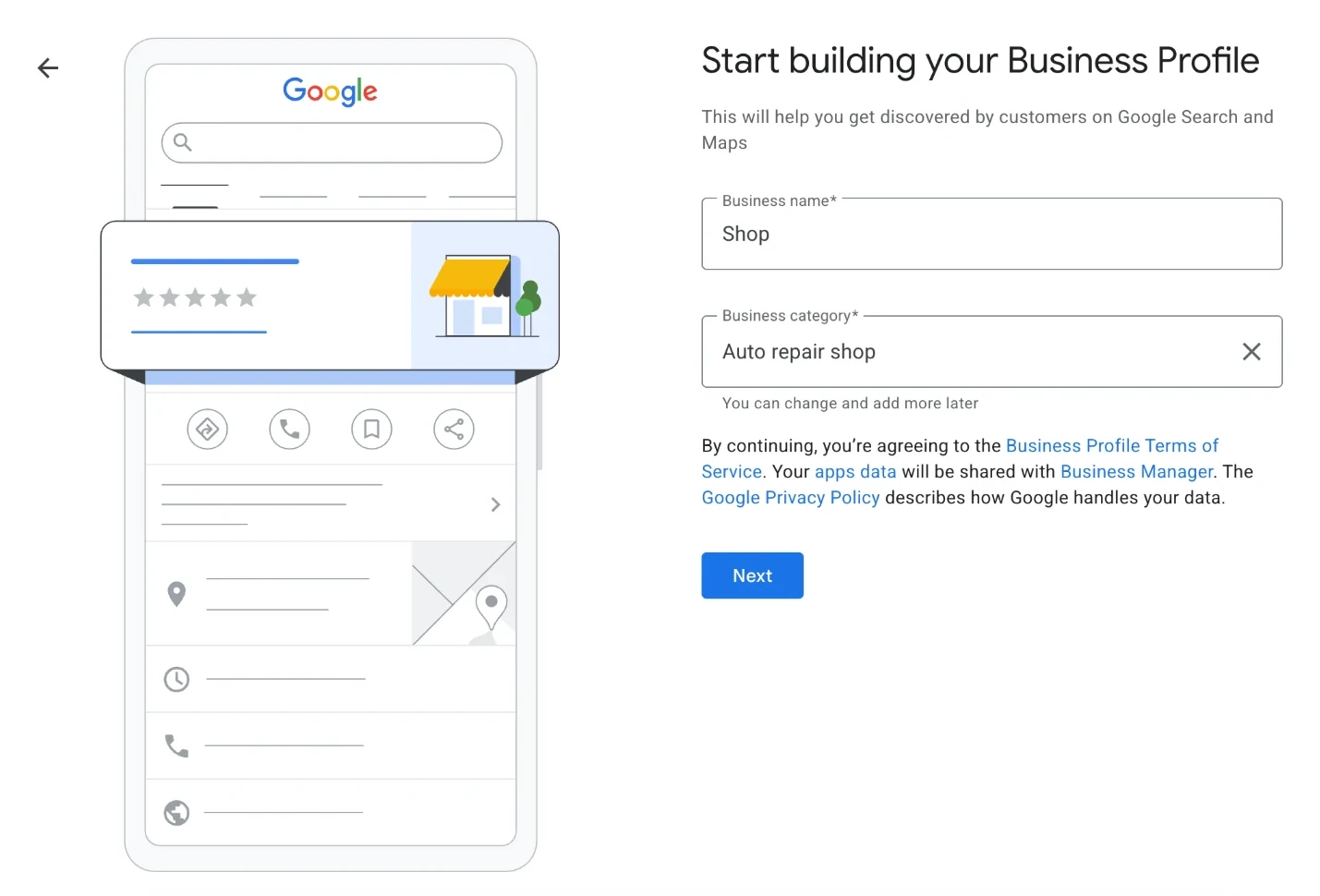
- Enter your Business name exactly as it appears on your sign, and set the Business category to Auto repair shop. Click Next.
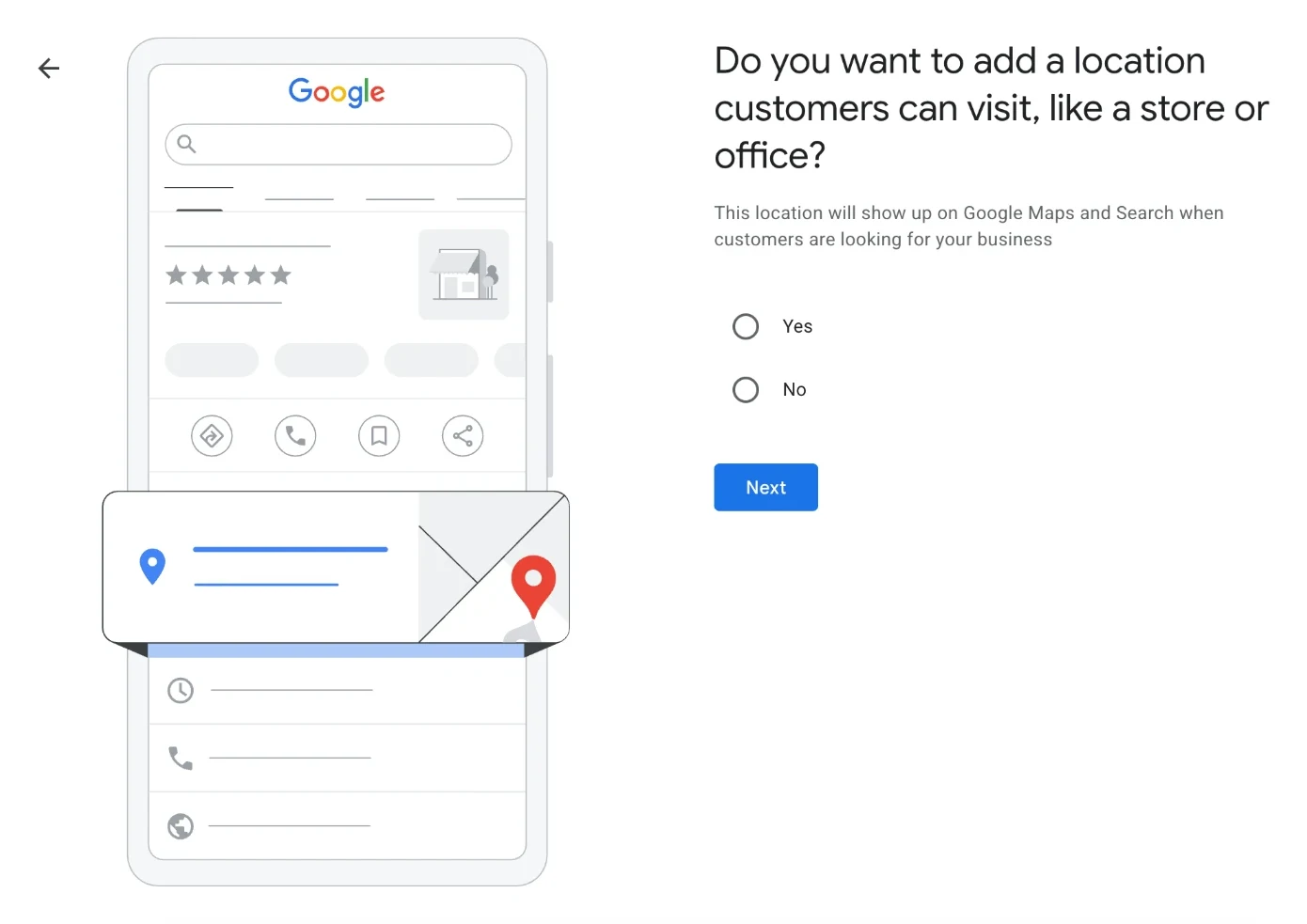
- Google asks whether customers can visit a location:
- Yes — customers drive to your garage. Choose this for a regular shop.
- No — you're a mobile mechanic with no location customers visit. You'll set the area you serve instead, and your address stays hidden.
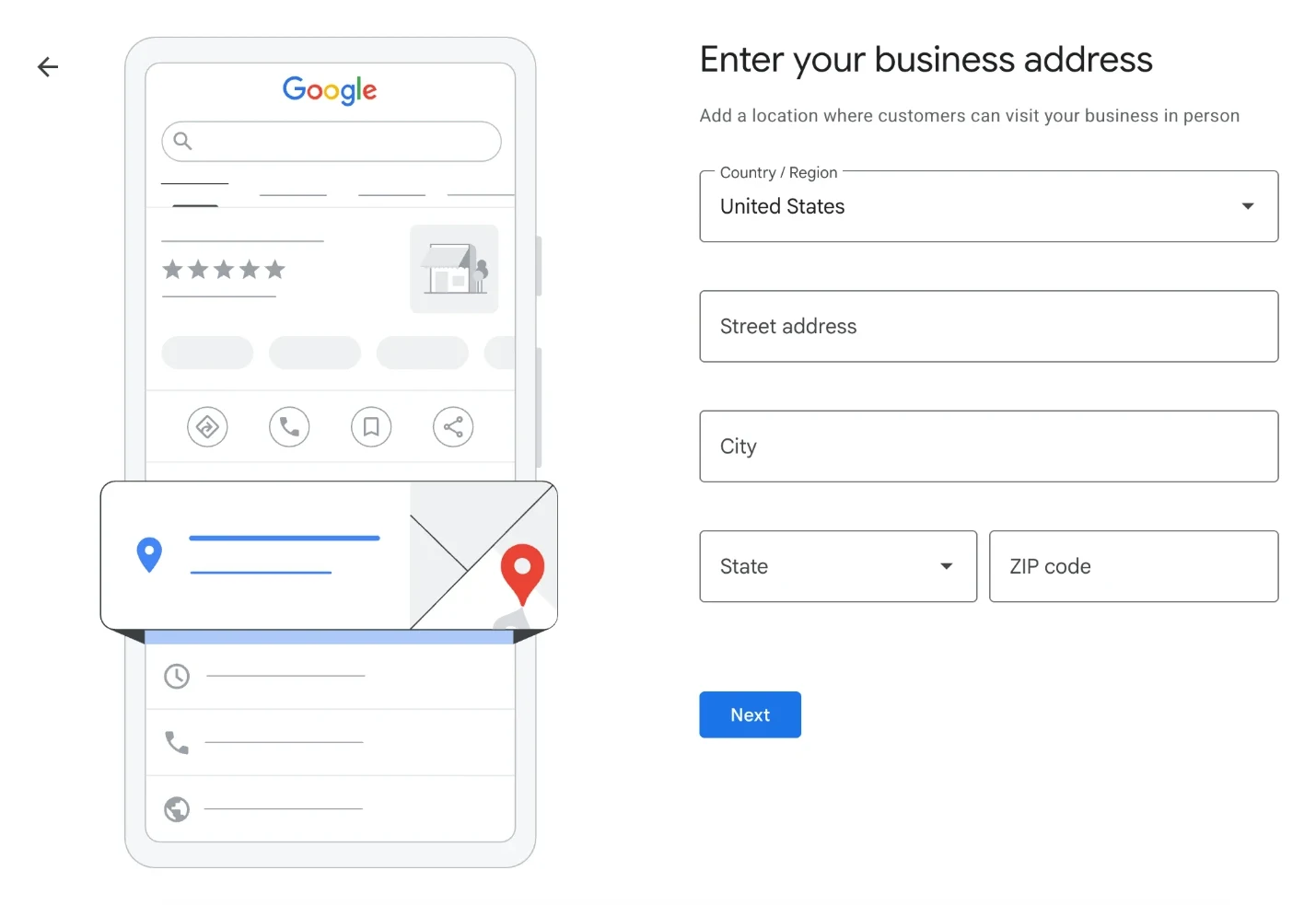
- If you chose Yes, enter your shop address and click Next. Do mobile work too? You can add service areas later (up to 20).
- Add your phone number and website (if you have one), then continue to verification.
Part 2 — Verify your shop
Google won't show your profile to customers until it confirms your business is real.
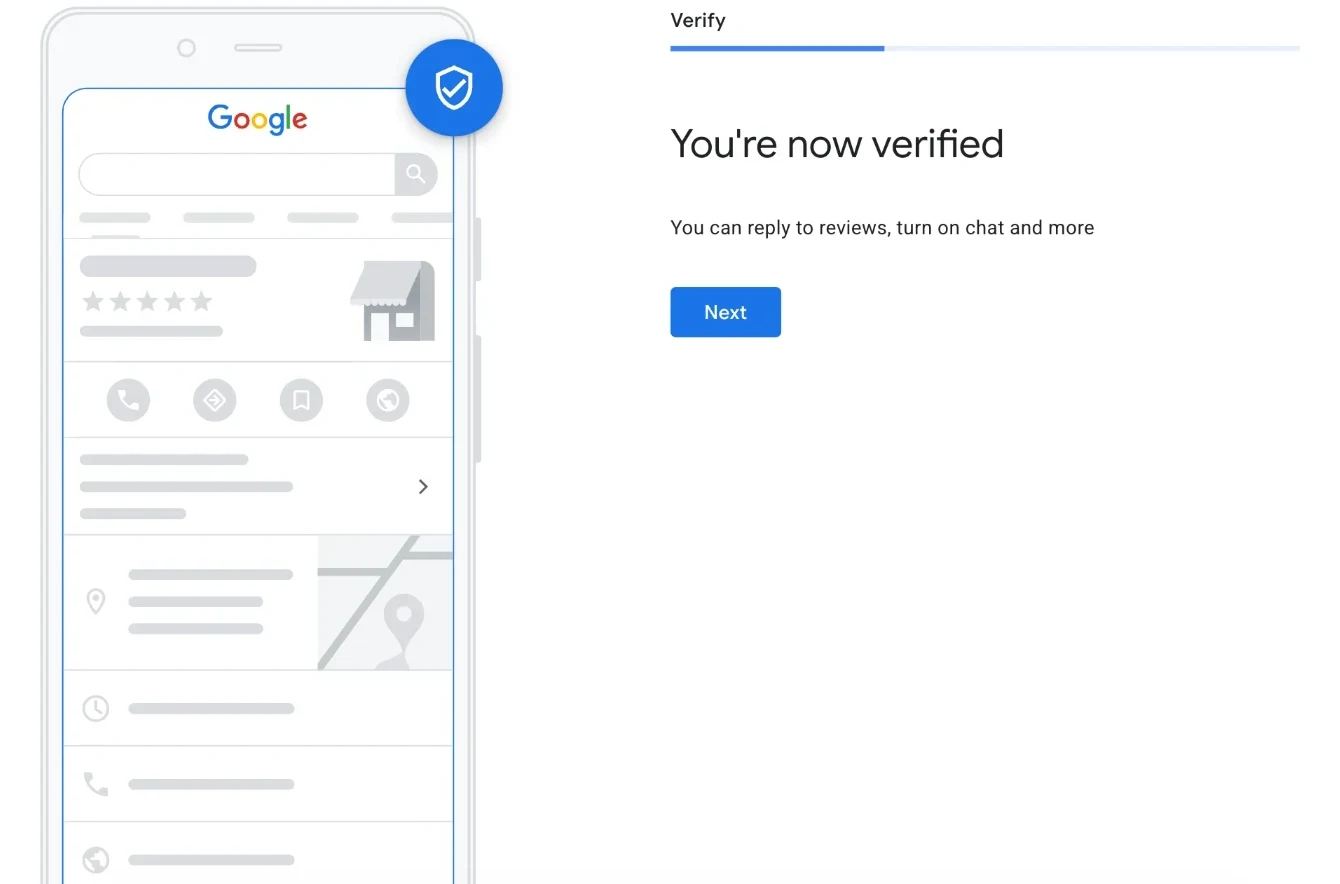
Google picks the verification method — you can't choose. It may be a short video recording, a live video call, a phone call, a text, an email, or a postcard by mail. Video is now common.
After you submit, Google reviews it — this usually takes up to 5 business days. Until then your profile is marked Not publicly visible, but you can keep filling it out (Part 3) in the meantime.
Part 3 — Fill it out so you actually show up
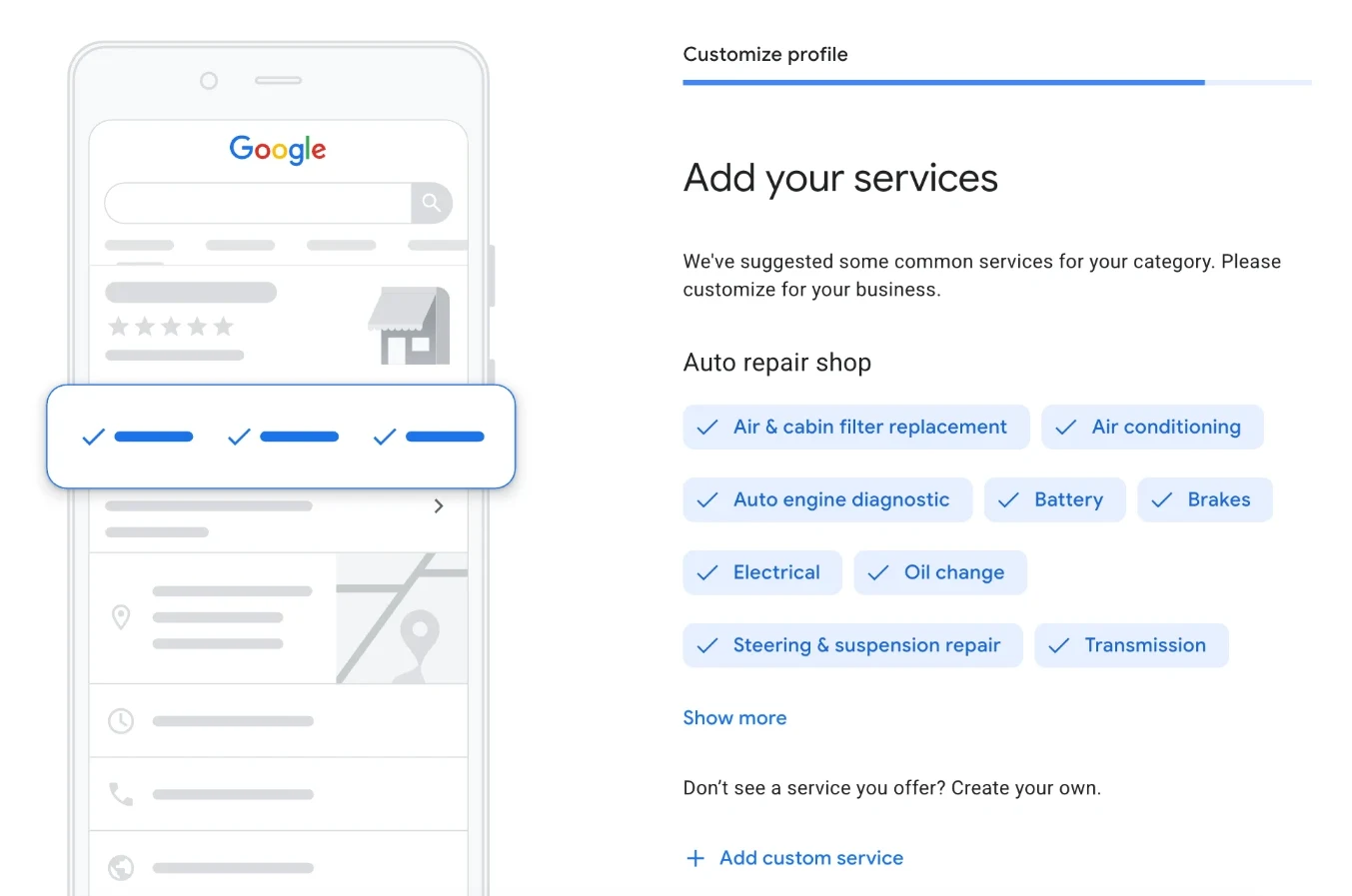
Being listed isn't the same as showing up. Google favors profiles that look complete and active. Right after verification, Google walks you through the basics:
- Services — Google suggests common auto repair services. Keep the ones you do, remove the ones you don't, and use Add custom service for anything missing. These are what help you show up for "brake repair near me," not just "auto repair."
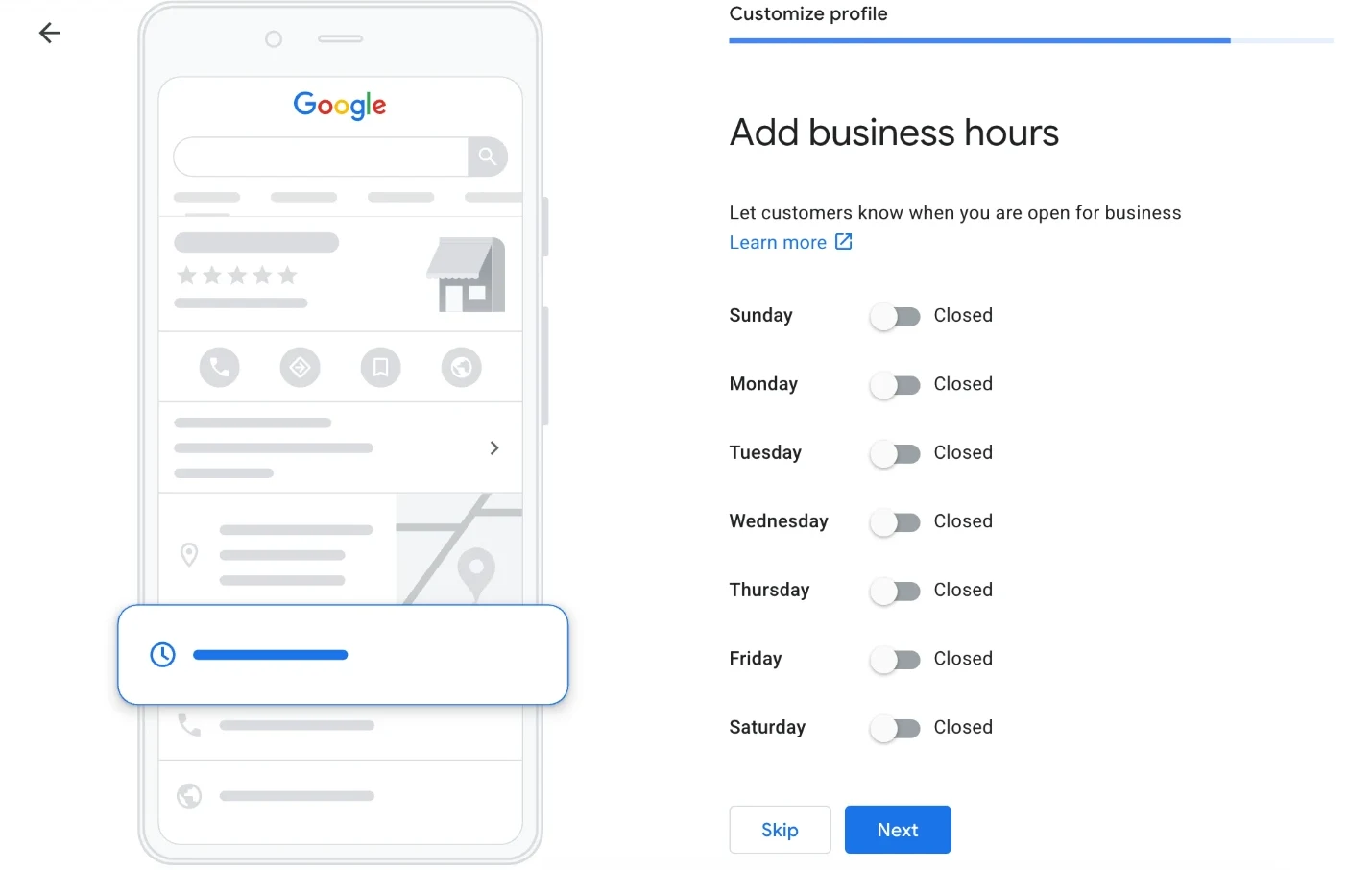
- Business hours — turn on each day you're open and set the hours. Keep them in sync with your booking tool so customers never book when you're closed.
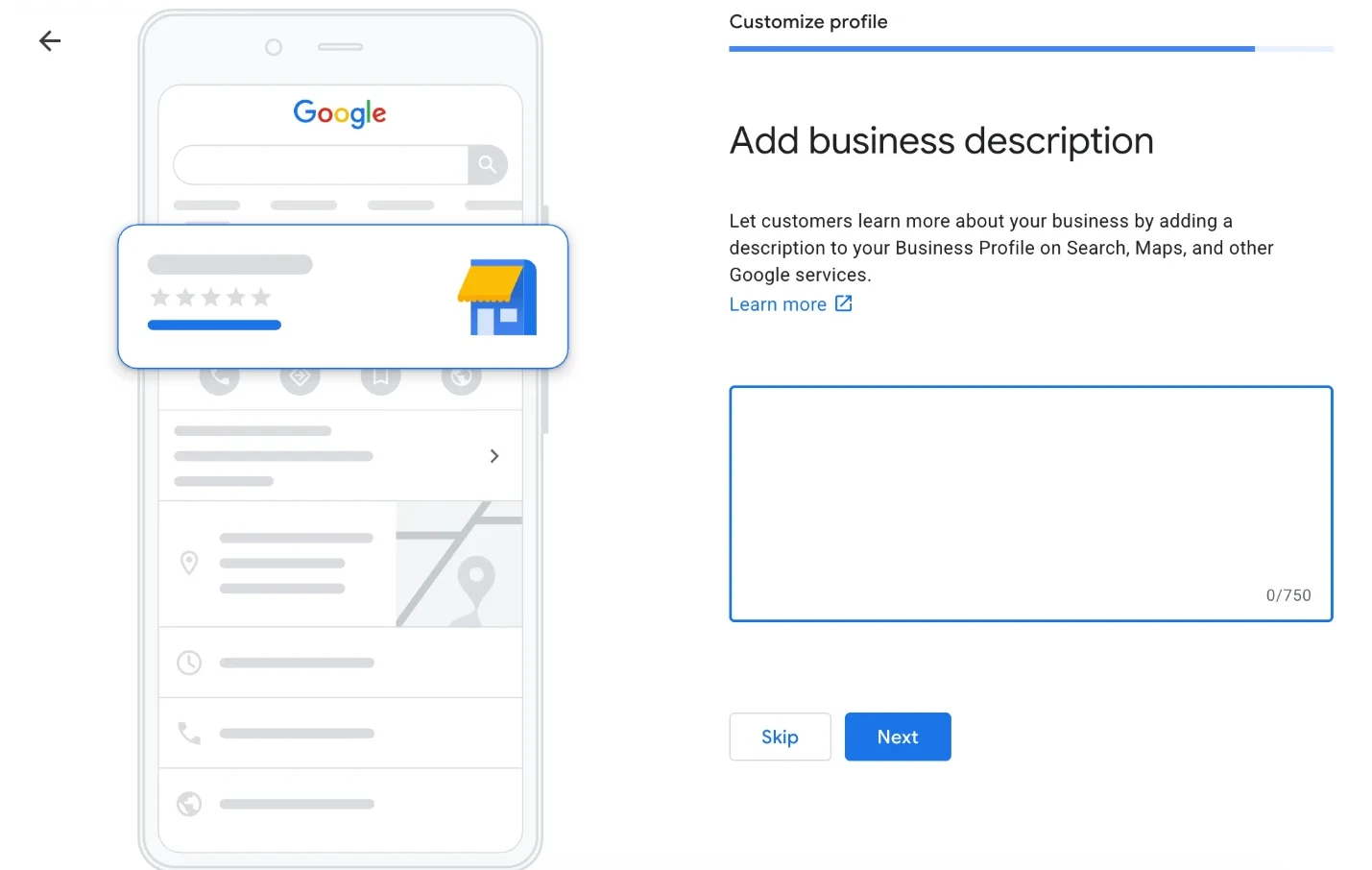
- Business description — up to 750 characters. A few plain sentences: who you are, what you specialize in, what makes you different.
- Advertising credit — Google will offer an ad credit for Local Services Ads. That's paid advertising and completely optional — click Skip if you just want your free listing.
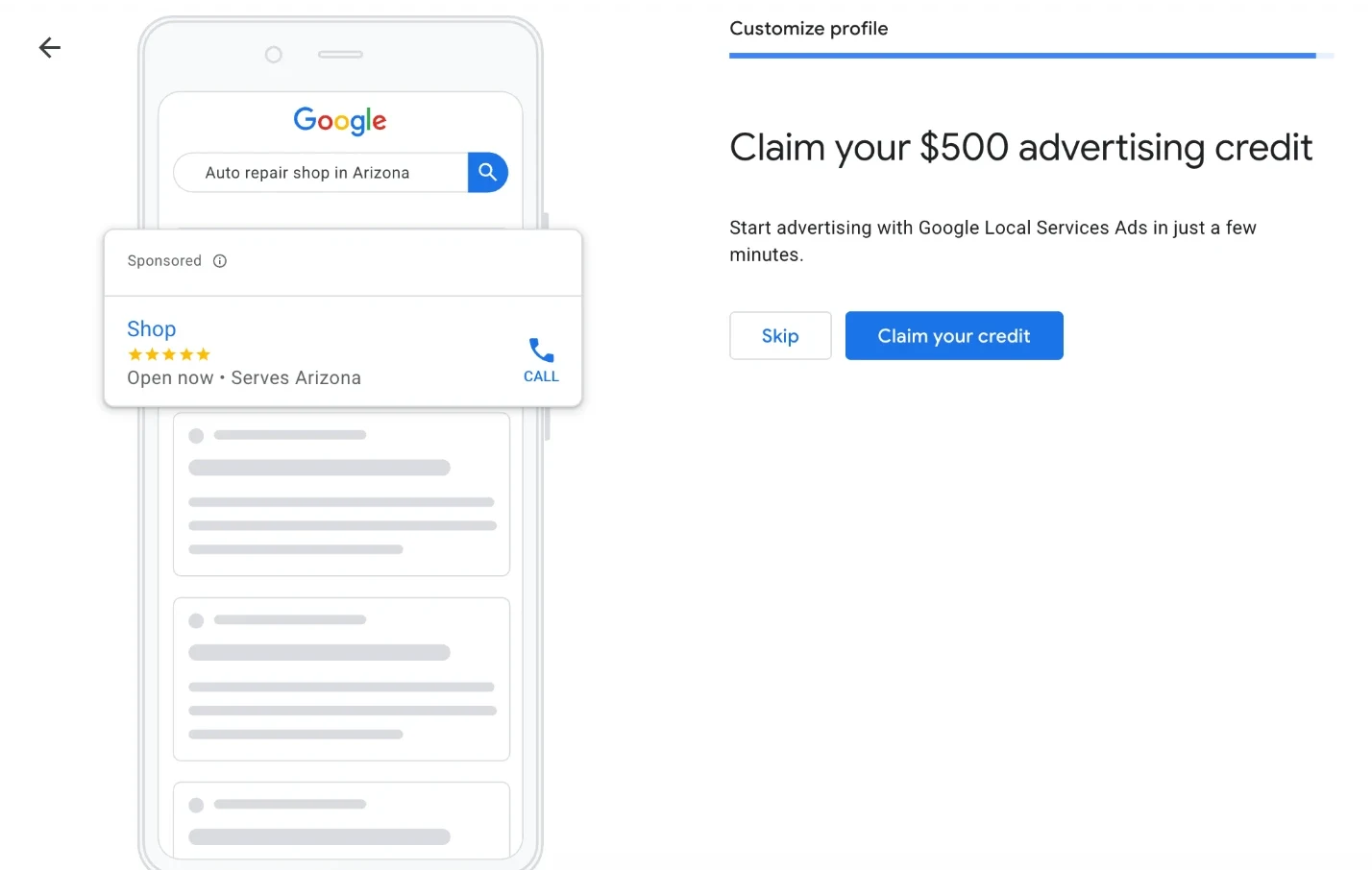
Click Continue. Your edits go live once verification is complete.
Then keep building it — this is what moves you up the map:
- Categories — keep Auto repair shop as primary and add every secondary that fits: brake shop, oil change service, tire shop, transmission shop (up to 9).
- Photos — your building, bays, team, and real work. Profiles with photos get more clicks and calls.
- Holiday hours — wrong hours are the fastest way to a 1-star review.
- Reviews — ask every happy customer at pickup, and reply to every review. Volume and recency of reviews are among the strongest signals for ranking on Maps.
Part 4 — Add your booking link
This is the step most shops miss. You can let customers book directly from your Google profile — in a couple of minutes, with whatever booking tool you use.
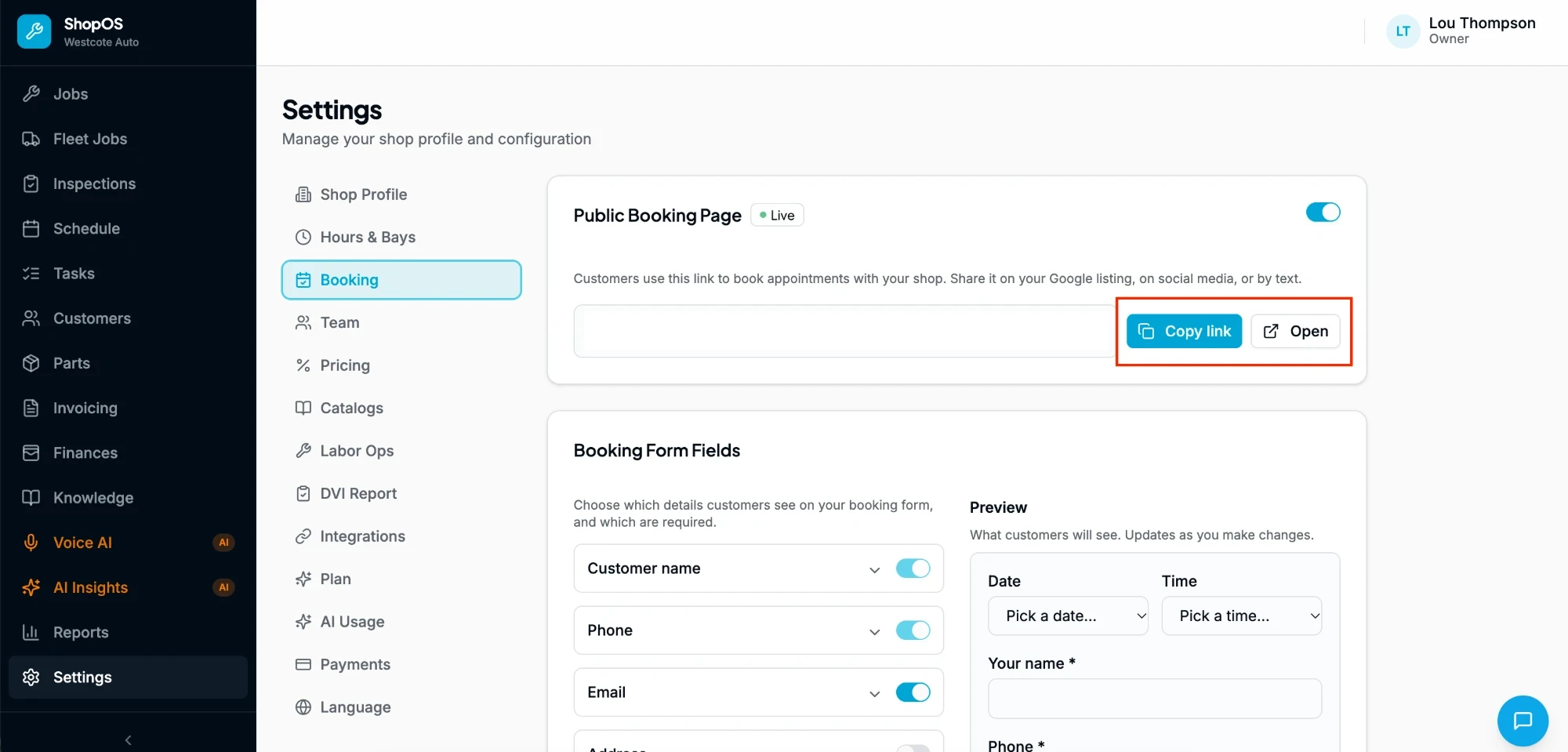
- First, copy your booking link from your scheduling tool. In ShopOS, go to Settings → Booking and copy your link (you can also set which details customers fill in there).
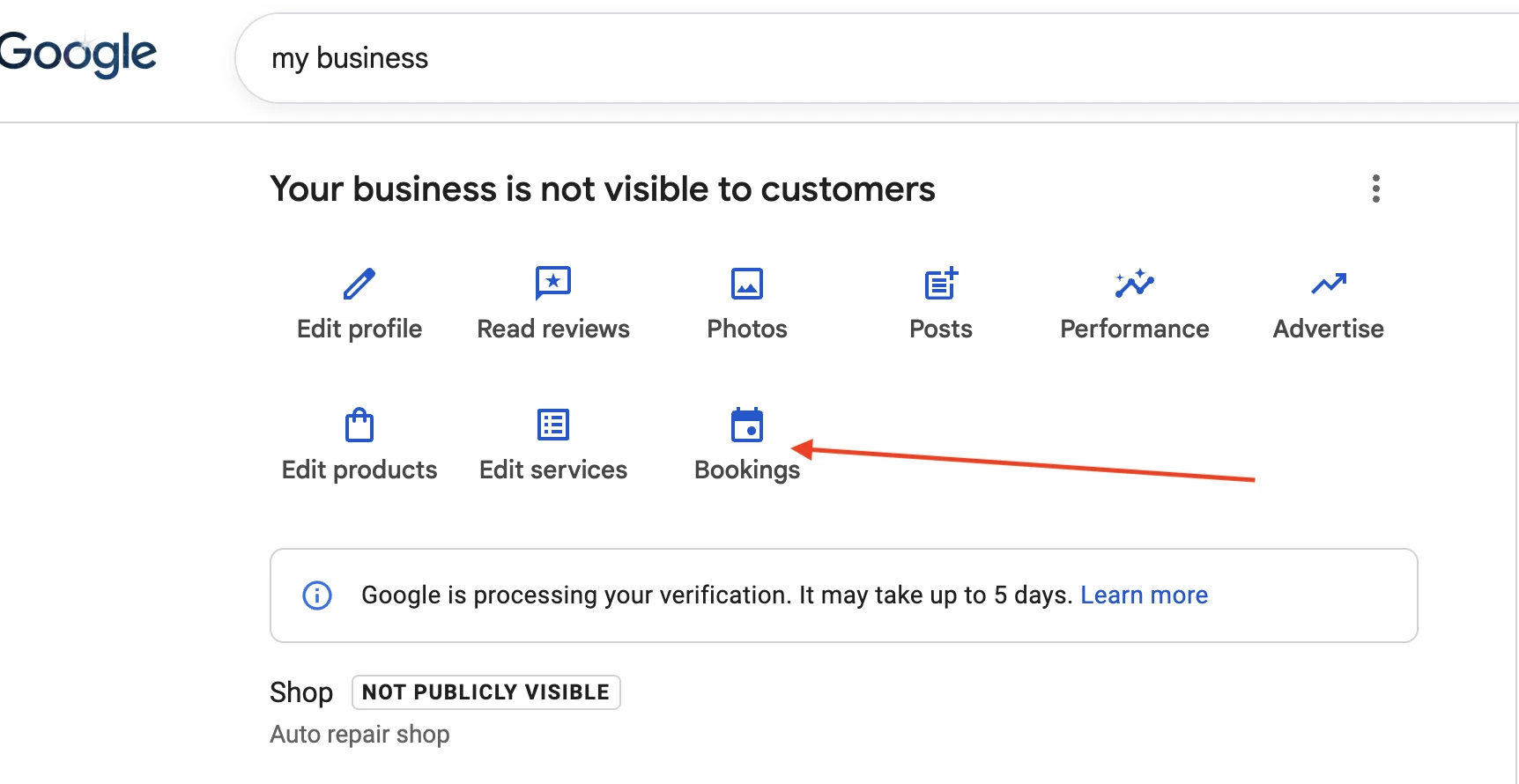
- On Google, open your profile while signed in to the shop's Google account — search "my business" on Google, or on the Google Maps app tap your business → Edit profile.
- Click Bookings (or Edit profile → Booking).
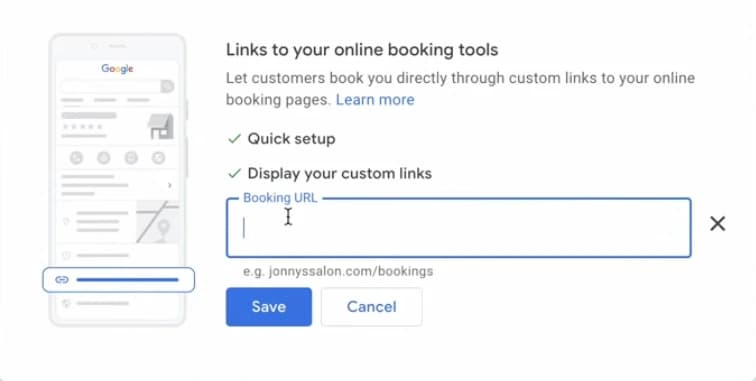
- Under Links to your online booking tools, paste your booking link into Booking URL and click Save.
- If you have more than one booking link, set your main one as the preferred link.
- Test it. On your phone, find your shop on Google, tap the booking link, and make a test booking. Check that it lands where it should (on ShopOS, your Schedule), then cancel it.
📝 One rule that matters: Google only keeps booking links that go to a page where the customer can actually complete a booking — not a contact form or your homepage. Whatever tool you use, make sure your link opens straight onto a real scheduling page. (The ShopOS booking link does this out of the box.)
📝 Good to know: the big blue "Book" button at the top of some profiles comes from Google's "Reserve with Google" partner program. A link you add yourself shows as a booking link on your profile — same destination for the customer, just not always the big blue button. A new link can also take a little while to appear.
Part 5 — How it all connects to ShopOS
If your shop runs on ShopOS, the whole loop closes itself:
- A customer searches "auto repair near me" and finds you on Maps.
- They tap your booking link and pick a time on your ShopOS booking page.
- The appointment lands on your ShopOS Schedule — no retyping, no phone tag, no double entry.
Google gets you found. ShopOS turns the visit into a booked job.
Common mistakes that keep shops off the map
- Never finishing verification. An unverified profile doesn't show publicly. If you started and stalled, go back and finish.
- A half-empty profile. No photos, one category, no services. Google favors complete profiles — so do customers.
- Inconsistent info. Your name, address, and phone should match exactly across your profile, your website, and other listings.
- Ignoring reviews. Not asking for them and not replying both hurt ranking and trust.
- A booking link that doesn't book. A homepage or contact-form link can get removed by Google — and customers bounce. Use a link that opens straight onto a real scheduling page (a ShopOS booking link works out of the box).
Frequently asked questions
Is a Google Business Profile free?
How long does verification take?
Why isn't my shop showing on Google Maps yet?
Can I manage my profile from my phone?
Do I need to be a "Reserve with Google" partner to take bookings?
Steps reflect Google Business Profile as of October 2026. Google updates this flow often — if a screen looks different, check Google's help page on business links.
Keep reading.
- ShopOS
What KPIs should an auto repair shop track? The 7 that matter
Seven KPIs matter: return-date accuracy, cycle time, touch time, comeback rate, ARO, effective labor rate and parts gross margin.
- ShopOS
How Do Repair Shops Track Work That Isn't a Repair Order?
Most shop software is built around the repair order, so internal work — cleaning, restocking, stock counts — ends up on a whiteboard. Here's the better way.